How to Download All Your iCloud Photos at Once
Download your entire iCloud photo library in one go — without running out of disk space. Works for libraries of any size, including 100GB+.

If you want to download all your iCloud photos at once, you'll hit the same wall almost immediately: your Mac runs out of space, the Photos app stalls, and iCloud.com caps you at 1,000 photos per batch. For libraries over 20GB, none of the obvious methods work reliably.
Here's every method that actually works, ranked from best to worst — tested on libraries from 10GB to 500GB.
The Problem With Downloading iCloud Photos
iCloud stores your original full-resolution files in the cloud and keeps smaller optimised previews on your devices. When you "download" photos through the Photos app, you're often just getting the previews — not the originals.
To get your actual files you need to force iCloud to download the full originals, which takes significantly longer and requires much more disk space.
For libraries over 50GB this is where most methods fall apart.
Method 1 — Migrate Moments (Best for Large Libraries)
Migrate Moments is built specifically for this. It downloads your iCloud originals in smart batches directly to an external drive, so your Mac's internal storage never fills up.
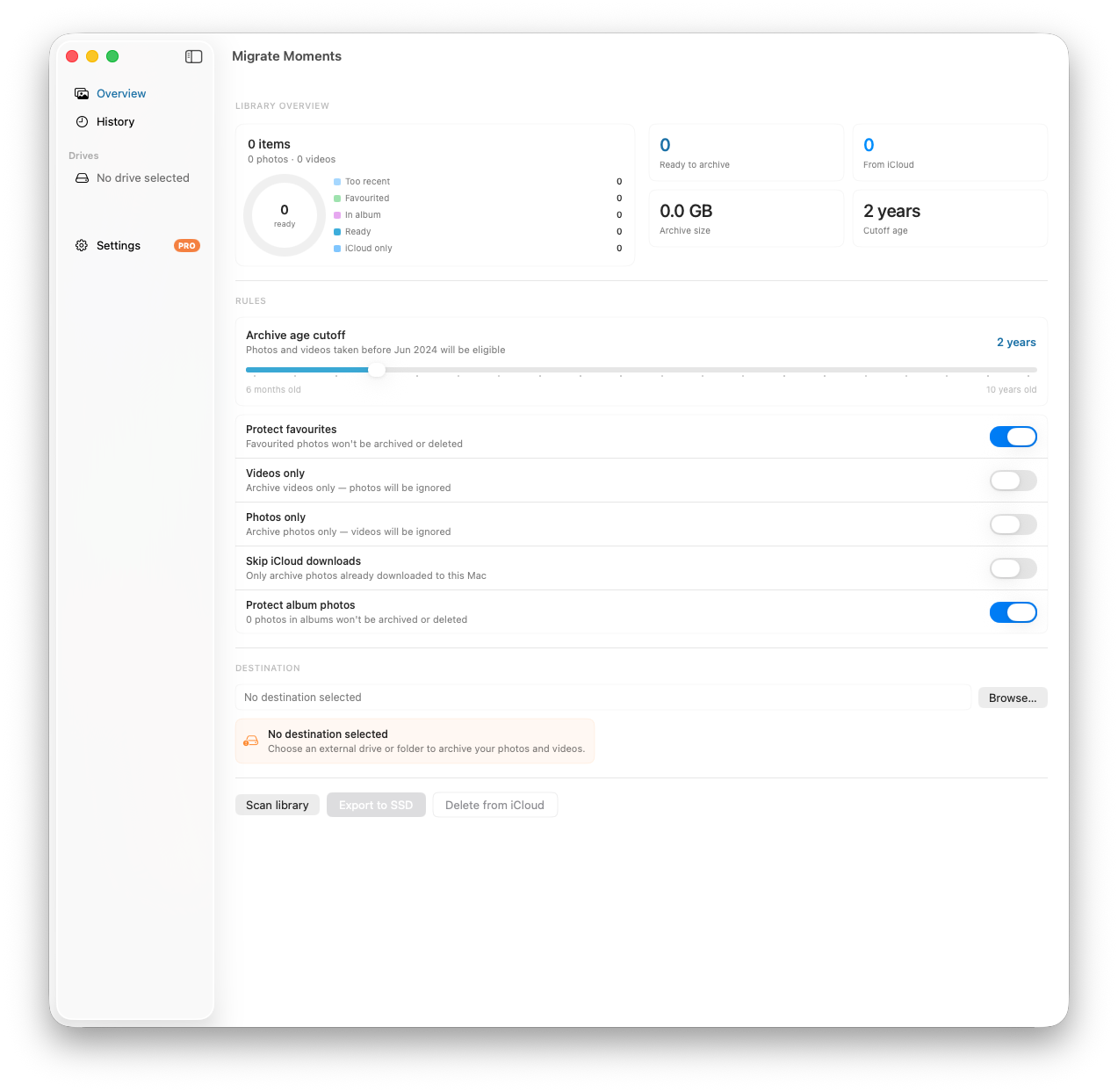
- Download Migrate Moments free on your Mac
- Connect an external SSD with enough free space
- Open the app — it scans your library automatically
- Select your external drive as the destination
- Click Export — it downloads and organises everything by year and month
Why it's better: It works directly with the Photos library engine, handles libraries of any size, and runs in the background without you needing to monitor it. Nothing is deleted from iCloud unless you explicitly choose to remove it afterwards.
Works on: macOS 14+
Method 2 — The Photos App (Best for Small Libraries)
For libraries under 20GB this works fine.
- Open Photos on your Mac
- Go to Photos → Settings → iCloud
- Select Download Originals to this Mac
- Wait for everything to sync — this can take hours or days
- Once complete, go to File → Export → Export Unmodified Originals
- Choose your destination folder and export
The catch: This downloads everything to your Mac's internal storage first. If your library is larger than your available disk space, it won't work. You'll need to export to an external drive after the download completes.
Method 3 — iCloud.com (Best for Small Batches)
- Go to icloud.com/photos in your browser
- Select the photos you want (Cmd+A to select all)
- Click the download button in the top right
The catch: iCloud.com has a hard limit of around 1,000 photos per download. For large libraries you'd have to repeat this hundreds of times. Not practical for anything over a few hundred photos.
Method 4 — Apple's Data & Privacy Tool
Apple lets you request an export of all your iCloud data:
- Go to privacy.apple.com
- Sign in with your Apple ID
- Click Request a copy of your data
- Select iCloud Photos
- Choose your file size limit and request the export
Apple emails you a download link within a few days. The export is split into multiple ZIP files. This is reliable but slow — you won't get your photos immediately.
Prefer to send your photos to Google Photos instead? See our guide on how to move photos from iCloud to Google Photos.
How Long Does It Take?
| Library Size | Migrate Moments | Photos App |
|---|---|---|
| 10GB | 1–2 hours | 2–4 hours |
| 50GB | 4–8 hours | 8–16 hours |
| 200GB+ | 12–24 hours | 2–3 days |
Times vary depending on your internet speed and how many of your photos are already cached locally.
What You'll Need
- A Mac running macOS 14 or later
- An external drive with at least as much free space as your iCloud library
- A stable Wi-Fi connection
- Patience — large libraries take time regardless of method
Frequently Asked Questions
Will downloading photos delete them from iCloud? No. Downloading your photos to a Mac or external drive does not remove them from iCloud. You'd need to explicitly delete them afterwards if you want to free up iCloud storage.
Do I get the original full-resolution files? Only if you specifically export unmodified originals. The default Photos export may compress images. Migrate Moments always downloads the original files.
What about Live Photos and videos? All methods above support Live Photos and videos. Live Photos export as a still image plus a separate MOV file.
My download keeps stopping — what do I do? This usually means iCloud is throttling your download speed. Try downloading overnight when traffic is lower, or use Migrate Moments which handles retries automatically.
Download Your Entire Library With Migrate Moments for Mac
Migrate Moments for Mac is built to download all your iCloud photos at once — it exports originals in smart batches directly to an external drive, so your Mac never runs out of space. No 1,000-photo download limits. No babysitting the process. Free to download and scan.
Related Articles
Ready to free up your iCloud storage?
Download Migrate Moments free — scan your library in minutes.