Mac Running Slow Because of Photos — How to Fix It
Is your Mac slowing down because of a large Photos library? Here's what's causing it and how to speed things up without losing your memories.

A large Photos library is one of the most common causes of a slow Mac. Here's what's happening and how to fix it.
Why Photos Slows Down Your Mac
Several things happen when your Photos library gets large:
Disk space — Photos stores previews, thumbnails and cached versions of every photo locally even when originals are in iCloud. A library of 50,000 photos can use 20-40GB of cache even with Optimise Storage turned on.
Indexing — macOS Spotlight constantly indexes your Photos library for search. A large library means constant background processing.
Memory — the Photos app loads previews into RAM. With a huge library this can use several GB of memory.
iCloud sync — if photos are still uploading or downloading, this uses CPU, memory and network bandwidth continuously.
Quick Fixes
Close the Photos app when not using it — Photos does a lot of background work when open. Closing it frees up CPU and memory immediately.
Check for pending iCloud uploads — open Photos and look for a progress bar at the bottom. Let uploads complete before doing intensive work on your Mac.
Restart your Mac — clears memory caches and stops any stuck background processes.
Medium Term Fixes
Free up disk space — go to Apple menu → About This Mac → Storage → Manage and remove large files you don't need. A Mac with less than 10% free disk space slows down significantly.
Turn on Optimise Mac Storage — in Photos → Settings → iCloud, make sure Optimise Mac Storage is on. This keeps only previews locally and stores originals in iCloud.
Rebuild the Photos library — if Photos feels sluggish, hold Option while opening Photos and click Repair Library. This rebuilds the database and often speeds things up.
The Real Fix — Archive Old Photos
The most effective long term solution is reducing the size of your Photos library by archiving old photos to an external drive.
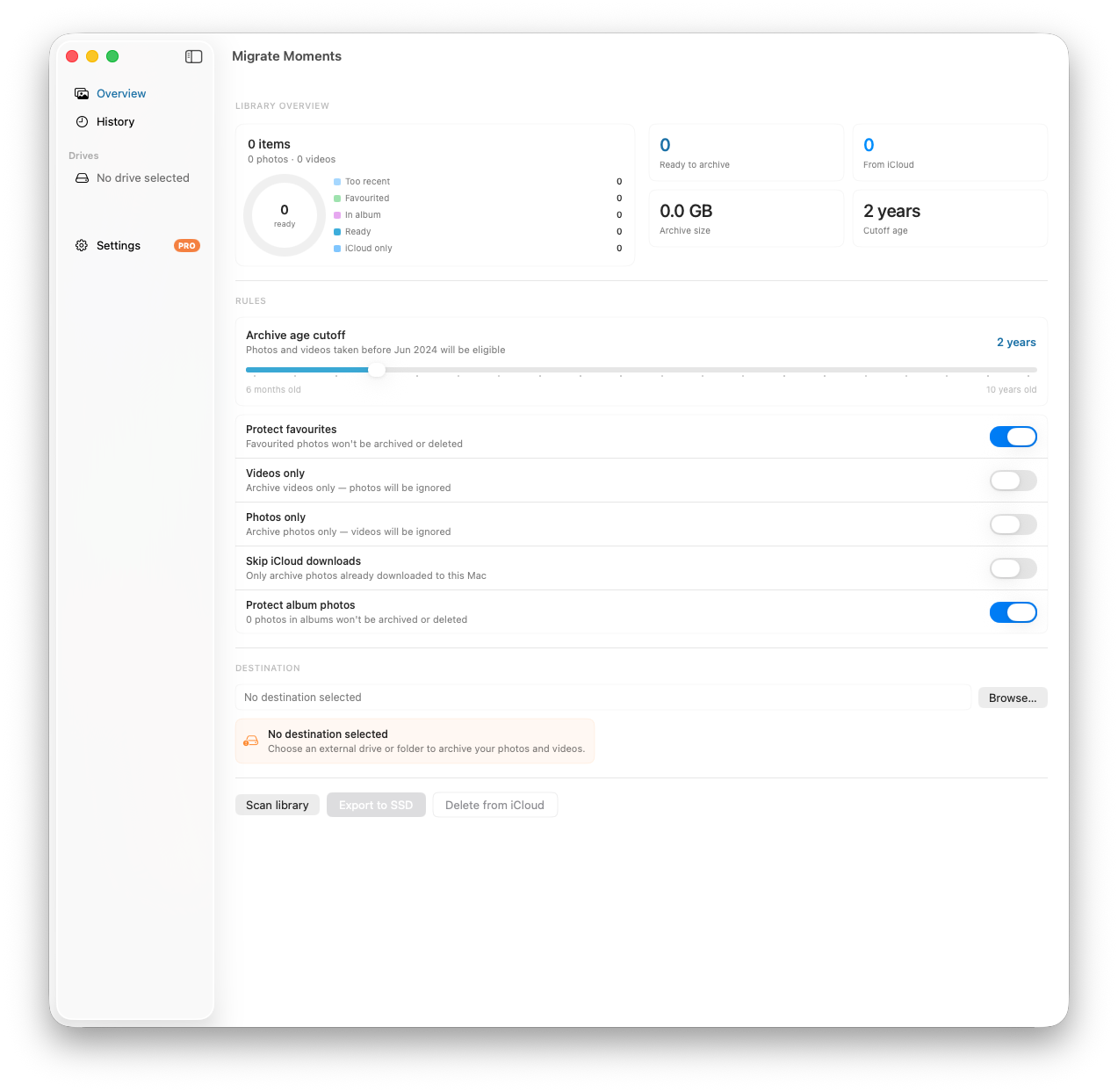
Migrate Moments exports photos older than a set date to an external SSD, organised by year and month, then removes them from iCloud. A smaller library means:
- Less disk space used for caches and thumbnails
- Faster Photos app launch and browsing
- Less background indexing and processing
- More free disk space for everything else
Archiving photos older than 2 years frees up disk space, which is often what's holding a Mac back.
How Much Space Can You Reclaim?
It depends on your library size but typical results are:
- 2-3 years of photos: 15-30GB reclaimed
- 4-6 years of photos: 30-80GB reclaimed
- 7+ years of photos: 80GB+
Check Your Mac's Storage
Go to Apple menu → About This Mac → Storage to see how much space your Photos library is using and how much free space you have overall.
A nearly full disk leaves macOS little room for swap and temporary files, which can slow things down. If photos are the bulk of what's filling your drive, archiving them is one of the more effective things you can do.
Related articles
Ready to free up your iCloud storage?
Download Migrate Moments free — scan your library in minutes.