How to Free Up iCloud Storage on iPhone Without Deleting Photos
iCloud storage full on your iPhone? Here are the best ways to reclaim space without permanently deleting your precious photos and memories.
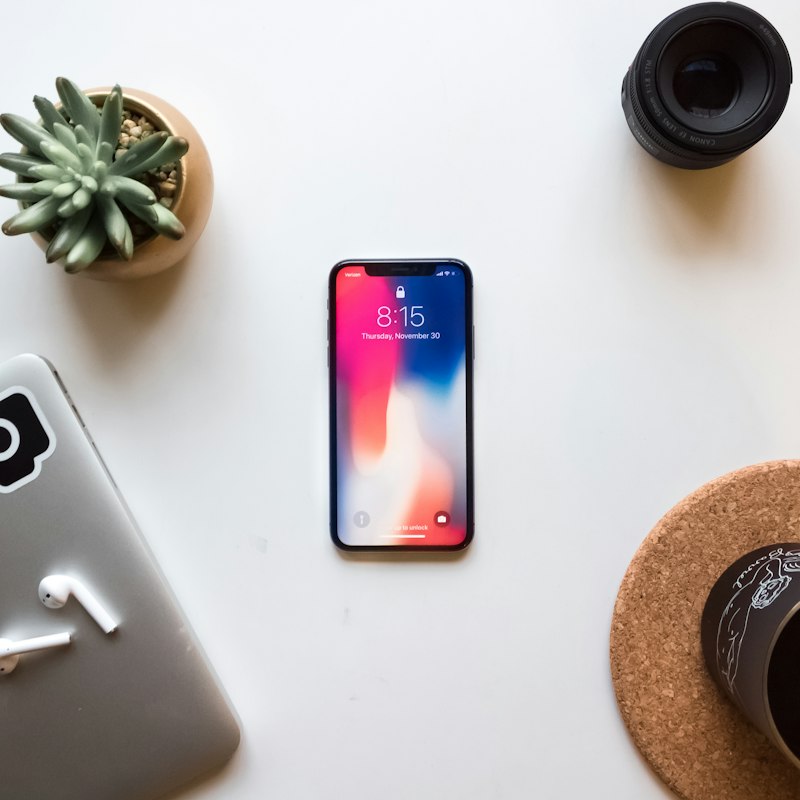
Getting the "iCloud Storage Full" warning on your iPhone is frustrating — especially when most of that storage is photos you don't want to delete. Here's how to free up space without losing a single memory.
Why You Shouldn't Just Delete Photos
Deleting photos from iCloud is permanent after 30 days in Recently Deleted. Most people don't want to delete memories — they just want them stored somewhere better.
The solution is moving photos, not deleting them.
Option 1 — Archive Old Photos to an External Drive
The best long-term solution is to export your older photos to an external SSD and remove them from iCloud. You keep every photo — they're just stored locally instead of in the cloud.
How to do it:
- Get an external SSD — 1TB costs around $100
- Download Migrate Moments on your Mac
- Export photos older than 1-2 years to your drive
- Remove them from iCloud to reclaim storage
- Drop to a cheaper iCloud plan
This is the most cost-effective solution and gives you full ownership of your photos.
Option 2 — Delete Other iCloud Data
Photos aren't the only thing using iCloud storage. Check these too:
- iCloud Backups — old device backups can be huge. Go to Settings → your name → iCloud → Manage Storage → Backups and delete old ones
- iCloud Drive files — documents, downloads and app data stored in iCloud Drive
- Messages — iMessage attachments sync to iCloud and take up significant space
Option 3 — Optimise iPhone Storage
In Settings → Photos, make sure Optimise iPhone Storage is turned on. This keeps small previews on your phone and full originals in iCloud — reducing local storage use without deleting anything.
Option 4 — Upgrade Your Plan (Temporary Fix)
Upgrading your iCloud plan buys time but doesn't solve the underlying problem. You'll hit the limit again eventually. It's better to address the root cause.
The Best Approach
Combine Option 1 and Option 2. Archive old photos to an external drive using Migrate Moments, then clear out old device backups. Between the two you can often reclaim enough to drop to a cheaper iCloud plan — run a scan to see what that looks like for your library.
Related articles
Ready to free up your iCloud storage?
Download Migrate Moments free — scan your library in minutes.